 How-to
Troubleshooting Smart Bulb Connectivity Issues That Won't Stay Connected
Last Updated: November 7, 2026
Quick Summary
Smart bulb connectivity problems fall into two buckets: a bulb that never paired, and a bulb that paired but keeps dropping offline. Pairing failures usually trace to the wrong Wi-Fi band, a mistyped password, or a phone on the wrong network, while repeated disconnections point to signal strength, router settings, or a stale IP address.
- Nearly every Wi-Fi smart bulb connects on the 2.4 GHz band only and cannot join a 5 GHz network.
- Turn band steering off temporarily during setup or split your bands into separate names.
- A bulb that goes offline at the same time daily is usually following a schedule, not failing.
- Signal strength near -70 dBm or weaker is marginal, so move the bulb or add an extender.
- Call a licensed electrician when the problem follows the fixture, not the bulb.
Table of Contents
- Why Your Smart Bulb Won't Connect: Diagnose Before You Fix
- How to Connect a Smart Bulb to Wi-Fi the Right Way
- Router Settings That Block Smart Bulb Connectivity
- How to Reset a Smart Bulb and Return It to Pairing Mode
- Smart Bulb Flashing but Not Connecting: What the Blink Pattern Tells You
- When a Smart Bulb Keeps Losing Connection
- When to Call a Licensed Electrician for Smart Bulb Connectivity Issues
- Frequently Asked Questions
Why Your Smart Bulb Won't Connect: Diagnose Before You Fix
A smart bulb that won't connect is almost never broken. Smart bulb connectivity problems usually sit somewhere between the bulb and the router, and the fix depends on which of two very different failures you have. Smart bulb connectivity problems fall into two buckets: a bulb that never paired in the first place, and a bulb that paired fine but keeps dropping offline.
This guide from Mister Volts walks you through both. We'll show you how to tell them apart, then fix each one in order.
Pairing Failure vs. Intermittent Disconnection
Pairing failure means the bulb has never joined your network. You open the app, tap add device, and it times out or never finds the bulb.
The distinction matters because the causes don't overlap much. Pairing failures usually trace to the wrong Wi-Fi band, a mistyped password, or a phone on the wrong network.
Ask yourself one question first: did this bulb ever work? If no, start with setup. If yes, skip ahead to the disconnection section.
If you're weighing whether to keep troubleshooting or upgrade your whole setup, it helps to see the benefits of upgrading to smart home lighting systems before you spend more time on one stubborn bulb.
How to Connect a Smart Bulb to Wi-Fi the Right Way
Most pairing failures come from setup order, not hardware. Getting the sequence right gives the bulb the best chance of joining on the first try.
Here's the order that works:
- Screw the bulb in and turn the switch on. Give it a few seconds to power up.
- Open the companion app and start the add-device flow before you leave the phone.
- Enter your Wi-Fi network name and password exactly, including capitals.
Confirm the 2.4 GHz Network and Credentials
Nearly every Wi-Fi smart bulb connects on the 2.4 GHz band only. It cannot see or join a 5 GHz network. If your router broadcasts one combined network name, the bulb may try the wrong band and fail.
The fix is to check your router's settings and confirm a separate 2.4 GHz network exists. Then connect your phone to that 2.4 GHz network during setup. The phone and the bulb must be on the same band for discovery to work.
Credentials trip people up too. The Wi-Fi password is case-sensitive, and the network name (SSID) must match exactly. A trailing space or a switched capital letter is enough to fail pairing silently.
Router Settings That Block Smart Bulb Connectivity
Your router can quietly block a bulb even when everything else looks right. The settings below are the usual suspects, and each one fails in a different way. Work through them in order, changing one setting at a time and putting it back if it doesn't help.
Band Steering, Guest Networks, DHCP, and MAC Filtering
Band steering is the router feature that pushes a device toward 5 GHz when it sees a compatible radio. A Wi-Fi smart bulb has no 5 GHz radio, so band steering can leave it stuck retrying a band it cannot join. The symptom is a bulb that appears in the app's add-device flow but times out during the handshake. Turn band steering off temporarily during setup, or split your bands into separate names (for example, a 2.4 GHz name and a 5 GHz name) and connect the phone to the 2.4 GHz name. Restore band steering afterward if you rely on it.
Guest networks usually run client isolation, which prevents devices on the guest network from talking to each other or to your main network.
DHCP hands out IP addresses from a pool.
MAC filtering blocks any device not on an approved list.
WPA mode matters too. Most Wi-Fi bulbs support WPA2-Personal (AES) and fail on WPA3-only or mixed WPA2/WPA3 modes that require protected management frames.
Firewall and security software can block the local discovery traffic a bulb uses during setup.
How to Reset a Smart Bulb and Return It to Pairing Mode
A reset clears old network credentials so the bulb can pair fresh.
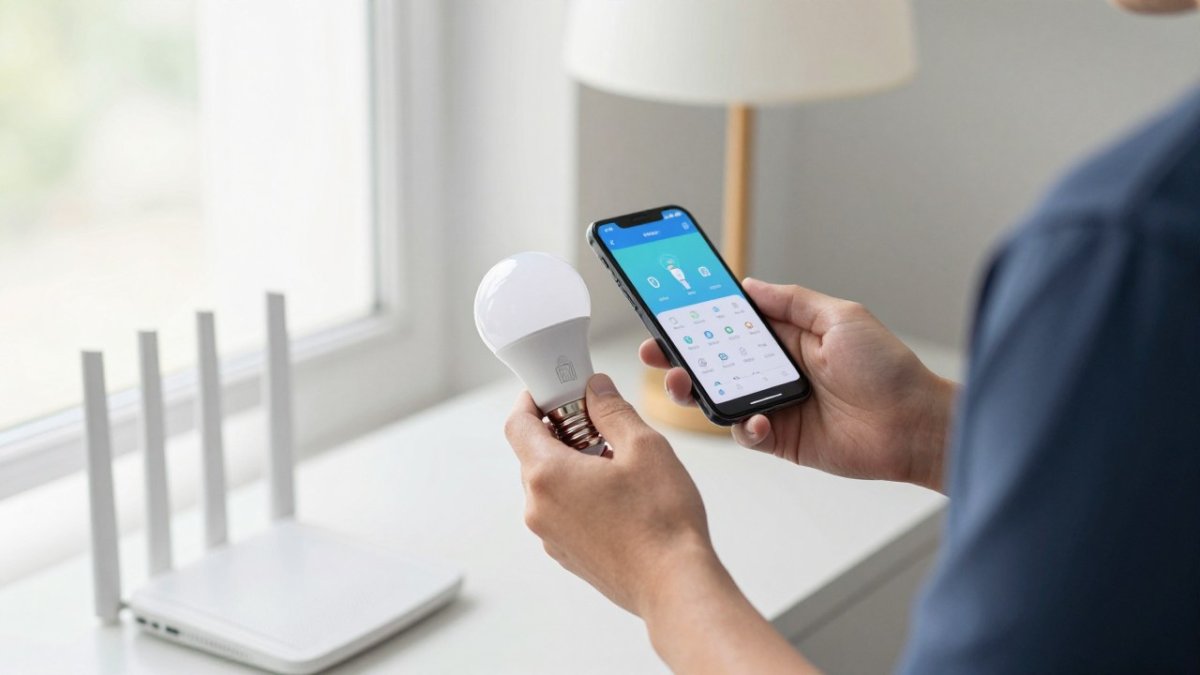
General reset steps:
- Turn the bulb off at the switch, wait a few seconds, turn it back on.
- Repeat the on-off cycle the number of times your manual specifies.
- Watch for a blink or color change that signals reset mode.
- Open the app, remove the old device entry, then add it again.
A common mistake is resetting the bulb but leaving the old device in the app. Remove it first, or the app may refuse to add it back.
Smart Bulb Flashing but Not Connecting: What the Blink Pattern Tells You
A flashing smart bulb is talking to you. The blink pattern is a status message, and reading it saves guesswork.
- Slow, even blink: the bulb is in pairing mode and waiting for the app.
- Rapid flashing: pairing is in progress or just failed. Give it a moment, then retry.
- A brief flash then steady light: power is fine, but the network connection failed.
If the bulb flashes in pairing mode but the app never finds it, the problem is almost always the phone's network or the 2.4 GHz band, not the bulb.
When a Smart Bulb Keeps Losing Connection
Repeated disconnection is a different failure from a bulb that never paired. The bulb connected once, so credentials and band are fine. Now it is dropping because the link is weak, unstable, or being interrupted. Use the symptom to pick the right branch instead of resetting everything again.
A Symptom-Led Decision Tree for Dropouts
Start with one question: does the bulb drop at the same time every day, or at random?
- Same time every day: look for a scheduled event. Check the app for routines, scenes, or schedules that turn the bulb off, and check the router for scheduled Wi-Fi or guest-network downtime. A bulb that goes offline at 11 p.m. is usually following a schedule, not failing.
- Random drops that recover on their own: this points to signal strength or mesh handoff. The bulb is at the edge of coverage or is being bounced between mesh nodes. Check the router's client list for the bulb's signal strength (often shown as RSSI in dBm; values near -70 dBm or weaker are marginal). Move the bulb, the router, or a mesh node, or add a 2.4 GHz extender.
- Drops that require a power cycle to recover: this points to a stale IP lease or a router that is not renewing the bulb's address. Check the DHCP lease table, confirm the bulb has a current lease, and consider a DHCP reservation so the bulb always gets the same address.
Reading the Indicators Before You Reset
Before you reset anything, collect the signals the app and router already give you. In the app, check the bulb's connection status, last-seen time, and any error code shown during a failed command. In the router's admin page, check the client list for the bulb's MAC address, signal strength, and lease time. A bulb that shows in the client list but not in the app is usually a local-network or app-permission issue, not a Wi-Fi issue.
Power Cycle, Firmware, and Hardware
If the symptom points to a general instability rather than a specific cause, work through these in order:
- Check signal strength. A bulb in a metal fixture, a basement, or a far corner may sit at the edge of coverage.
- Power cycle everything. Reboot the router, the modem, and the bulb. This clears stale connections and forces a fresh lease.
- Update firmware. Check both the bulb's device firmware and the app for updates. Router firmware matters too, since updates can change band steering and WPA behavior.
- Add a hub or extender. Mesh Wi-Fi or a 2.4 GHz extender can close a dead spot. Place the extender roughly halfway between the router and the bulb, not at the bulb's location.
Also know your bulb type. Bluetooth bulbs need close range and drop when the phone leaves the room. Zigbee and Thread bulbs rely on a hub or border router, and a weak mesh link between the bulb and the hub looks like a Wi-Fi dropout but is not.
If flickering comes with the disconnects, the cause may be in the fixture itself. Our guide on how to troubleshoot flickering lights in Macon homes covers the wiring side. And if repeated dropouts have you questioning the whole category, read whether smart home lighting is worth the investment before you decide.
When to Call a Licensed Electrician for Smart Bulb Connectivity Issues
Call a licensed electrician when the problem follows the fixture, not the bulb.
Those are signs of loose connections or an overloaded circuit, and they're not a DIY fix.
| Symptom | Likely Cause | What to Do |
|---|---|---|
| Bulb won't pair anywhere | Wrong band or password | Check 2.4 GHz and credentials |
| Drops offline in one fixture only | Wiring or fixture issue | Call an electrician |
| Flickers with disconnects | Loose connection or dimmer mismatch | Call an electrician |
| Warm outlet or buzzing | Circuit problem | Stop using it, call an electrician |
Our licensed electricians handle electrical repair and light fixture installation for Middle Georgia homes, and we're happy to start with a conversation about what you're seeing.
Smart lighting should make your home easier, not send you chasing a bulb around the house every week.
Frequently Asked Questions
Why do my smart bulbs keep losing connection?
Repeated dropouts usually trace to a weak 2.4 GHz signal, a stale IP address assigned by the router, or band steering pushing the bulb onto a 5 GHz band it cannot use. Mesh systems and extenders can also hand a bulb between nodes in ways that break the session. Check signal strength at the fixture, reserve a DHCP address for the bulb, and confirm the 2.4 GHz network name is separate from the 5 GHz name before replacing anything.
How do I reset a smart bulb that won't pair?
Use the manufacturer's reset sequence, which is often three to five quick power cycles from the wall switch, or a hold of the physical button if the bulb has one. After the reset, the bulb should blink to show it is in pairing mode. Delete the device from the app first, then add it again while your phone is on the 2.4 GHz network. If the bulb never blinks, the reset did not take and you should repeat the sequence exactly as the manual states.
Why is my smart bulb flashing but not connecting?
A slow, even blink usually means the bulb is in pairing mode and waiting for the app, so the failure is on the phone or network side: wrong Wi-Fi password, a 5 GHz connection, or a blocked port. A rapid or irregular flash often signals a firmware or power problem. Confirm your phone is on the 2.4 GHz SSID, disable any guest network isolation, and retry the add-device step before assuming the bulb is faulty.
Should I disable my router firewall to get a smart bulb online?
No. Turning off the firewall or dropping to older WPA modes exposes every device on your network, and a smart bulb does not need that. Most connectivity problems come from band steering, client isolation on a guest network, or MAC filtering, not the firewall. Change one router setting at a time and note what you changed, so you can restore it if the bulb still will not connect. A licensed electrician can check the circuit and fixture side if the issue persists.